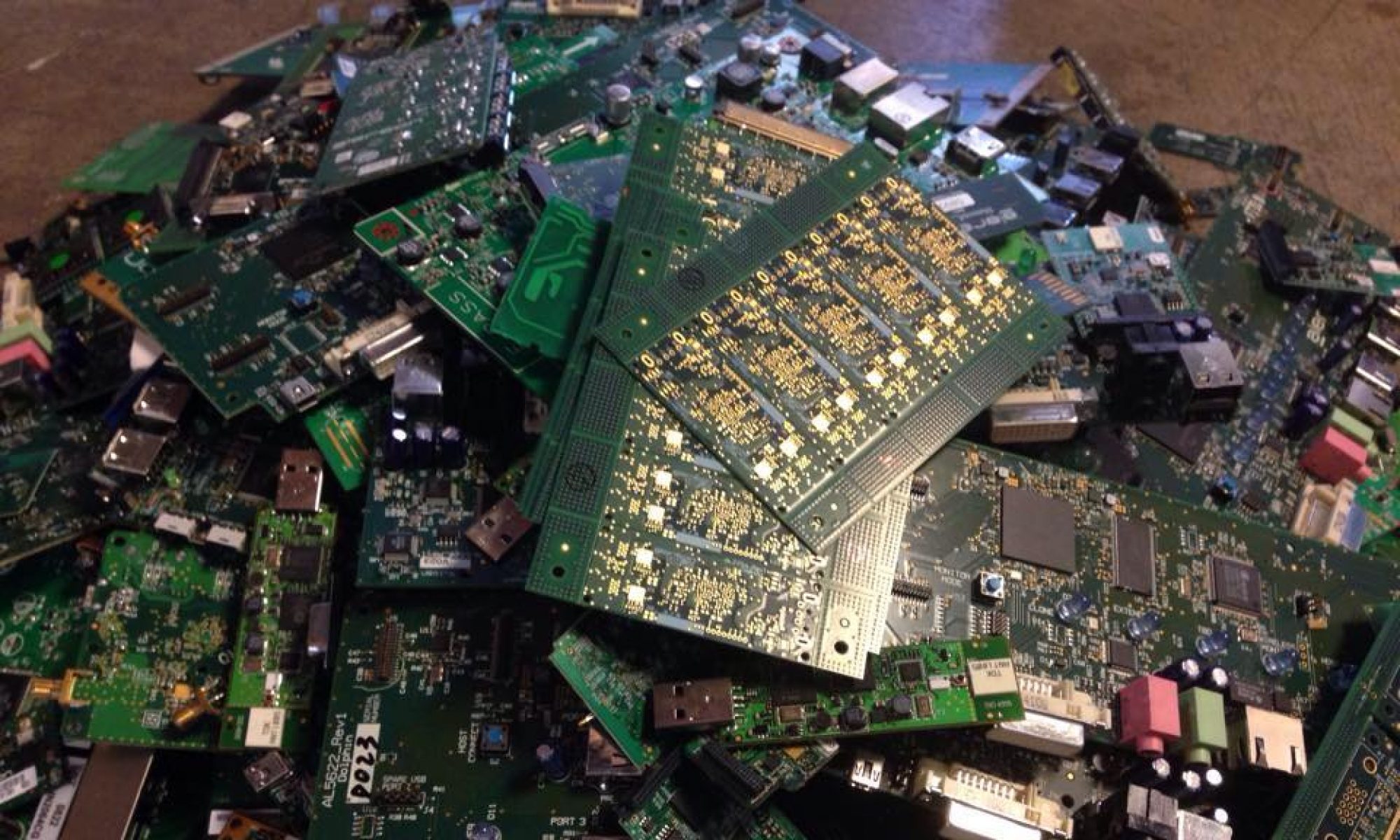


As electronic waste continues to grow, donating old Apple devices for recycling is an environmentally responsible choice. However, before handing over your iPhone, iPad, Mac, or other Apple device, it’s critical to completely erase all personal information and disconnect iCloud accounts. Failing to do so can expose sensitive data, including photos, messages, financial details, and passwords, to unauthorized access.
For corporate users, removing Mobile Device Management (MDM) profiles and corporate accounts is equally important to prevent data breaches and ensure compliance with organizational security policies.
This article explains why these steps are essential, provides links to official Apple resources for guidance, and includes a section on handling corporate accounts and MDM removal.
Why Erasing Data and iCloud Accounts Is Essential
- Protecting Personal Information
Apple devices store a wealth of sensitive data, such as emails, contacts, photos, banking information, and passwords stored in iCloud Keychain. If not properly erased, this data could be recovered by someone with access to the device, even after a basic reset. For example, a 2022 study on e-waste recycling found that 25% of discarded devices contained recoverable personally identifiable information (PII) due to improper data wiping. Deleting all data and unlinking iCloud accounts ensures your personal information remains secure. - Preventing Unauthorized iCloud Access
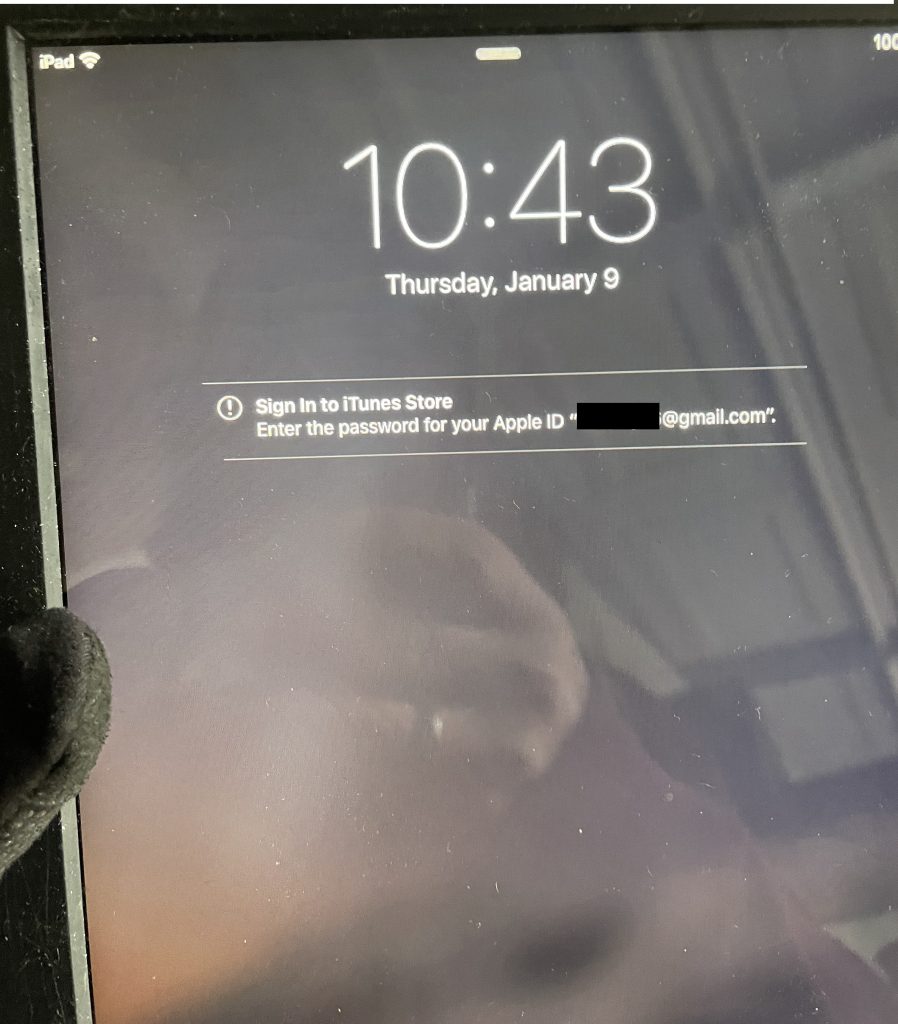
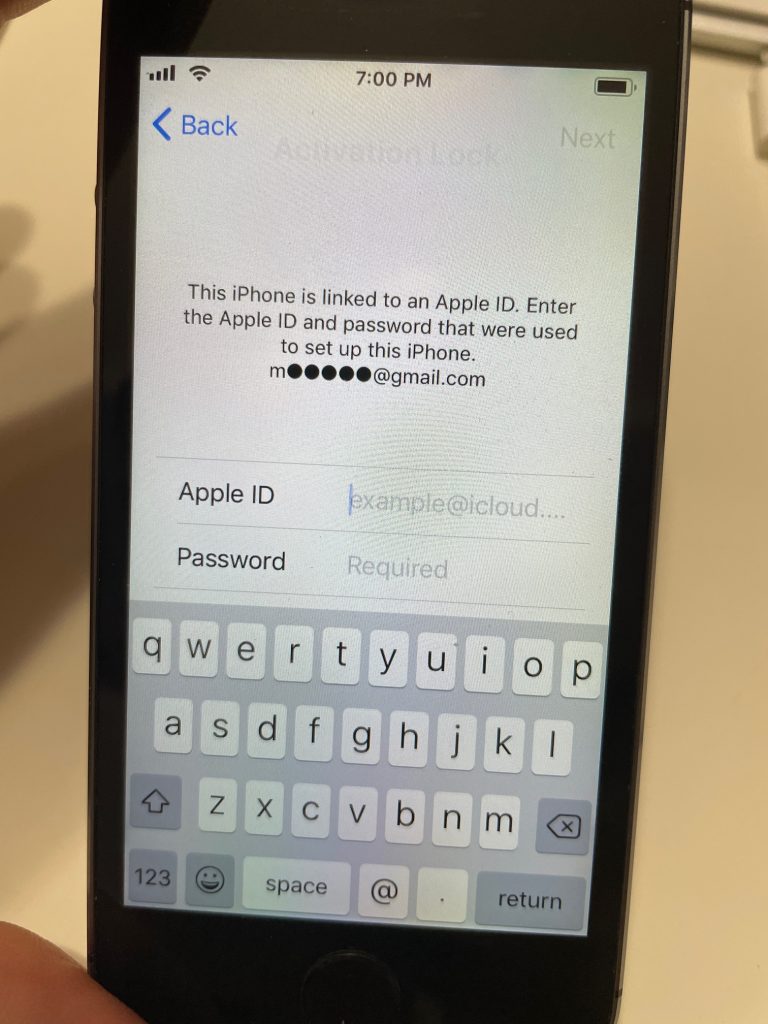
iCloud accounts are tied to Apple devices through features like Find My and Activation Lock. If a device is donated without signing out of iCloud, the new owner or recycler may be unable to use or repurpose it due to Activation Lock, rendering the donation less effective. Worse, if the device is accessed maliciously, your iCloud account could be compromised, exposing data across all your linked devices. Apple’s Activation Lock, while a security feature, requires the original owner’s credentials to unlock, making it critical to sign out before recycling. - Ensuring Responsible Recycling
Reputable recycling programs, such as Apple’s own recycling initiative, prioritize data security and require devices to be wiped before acceptance. Failing to erase data may lead recyclers to reject the device or delay processing, as they must ensure compliance with data protection regulations like the General Data Protection Regulation (GDPR) or the California Consumer Privacy Act (CCPA). Properly preparing your device streamlines the recycling process and supports environmentally responsible practices. - Avoiding Legal and Financial Risks
Improperly discarded devices with residual data can lead to identity theft or financial fraud. For instance, recovered banking apps or stored credit card details could be exploited. In 2023, identity theft affected over 2.6 million Americans, with data breaches from discarded electronics being a contributing factor. Erasing your device mitigates these risks and protects you from potential legal or financial consequences.
How to Delete All Information and iCloud Accounts
Apple provides clear instructions for securely erasing data and signing out of iCloud accounts. Below are the steps and official resources to guide individual users through the process.
For iPhone, iPad, or iPod touch
- Back Up Your Data: Before erasing, back up important data to iCloud or a computer using iTunes or Finder.
- Sign Out of iCloud and Other Services: Go to Settings > [Your Name] > Sign Out, enter your Apple ID password, and choose to keep or delete local data. This also disables Find My and Activation Lock.
- Erase All Content and Settings: Navigate to Settings > General > Transfer or Reset [Device] > Erase All Content and Settings. Follow the prompts to wipe the device. This removes all data, apps, and settings, including iCloud account links.
- Remove Device from Your Apple ID: On another device or via iCloud.com, go to Find My > Devices, select the device, and click Remove from Account to ensure it’s no longer linked to your Apple ID.
For Mac

- Back Up Your Data: Use Time Machine or iCloud to back up files.
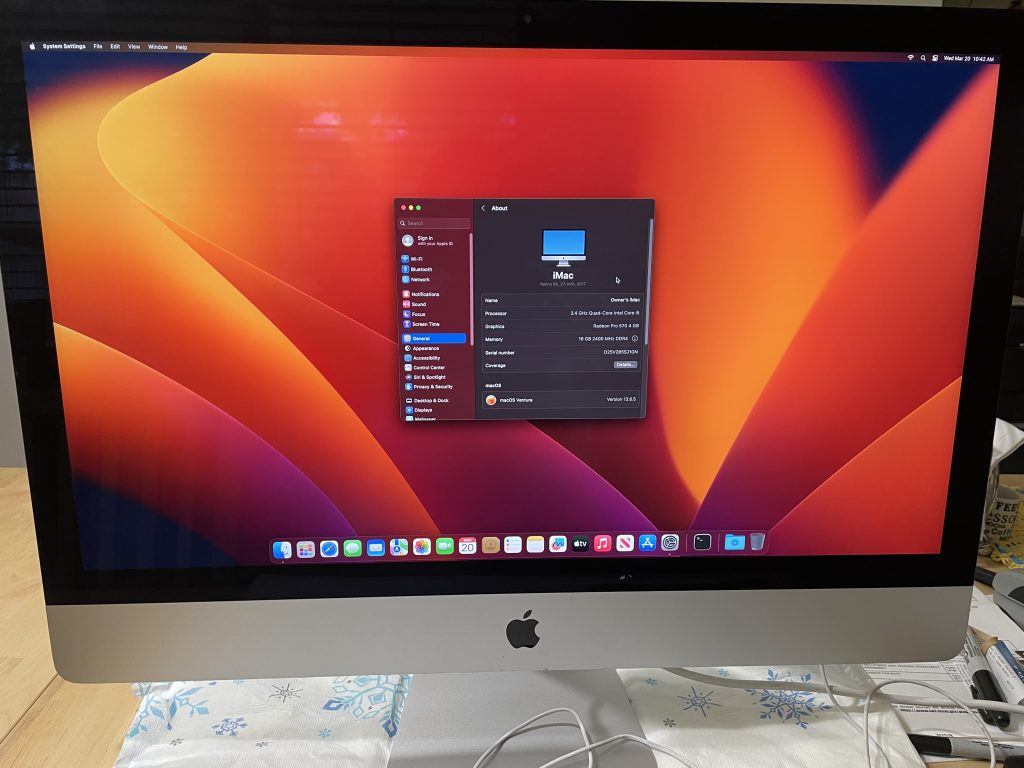
- Sign Out of iCloud: Go to System Settings > [Your Name] > Sign Out, and choose whether to keep a copy of iCloud data. This also disables Find My Mac.
- Sign Out of Other Services: Sign out of apps like iMessage (Messages > Settings > iMessage > Sign Out) and the App Store (App Store > Account > Sign Out).
- Erase the Mac: For macOS Ventura or later, go to System Settings > General > Transfer or Reset > Erase All Content and Settings. For older macOS versions, use Disk Utility to erase the startup disk, then reinstall macOS to prepare the device for recycling.
- Remove from Apple ID: On another device or iCloud.com, remove the Mac from your Apple ID via Find My > Devices.
For Apple Watch

- Back Up Your Data: Ensure your paired iPhone has backed up the Apple Watch data to iCloud or a computer.
- Unpair the Watch: On the paired iPhone, open the Watch app, go to All Watches, select the watch, and tap Unpair Apple Watch. This signs out of iCloud and removes Activation Lock.
- Erase if Unpaired Manually: If unpaired without an iPhone, go to Settings > General > Reset > Erase All Content and Settings on the watch itself.
- Remove from Apple ID: Verify the watch is removed from your Apple ID via Find My > Devices on iCloud.com.
Additional Considerations
- Two-Factor Authentication: If two-factor authentication is enabled, you may need to enter a verification code to sign out of iCloud. Ensure you have access to a trusted device or phone number.
- Lost or Stolen Devices: If you no longer have the device, you can remotely erase it using Find My on iCloud.com. Go to Find My > Devices, select the device, and choose Erase This Device.
- Verify Erasure: After erasing, the device should display the setup screen (e.g., “Hello” screen on iPhone). If it’s still locked, contact Apple Support for assistance.
Corporate Users: Removing MDM/Remote Management and Corporate Accounts
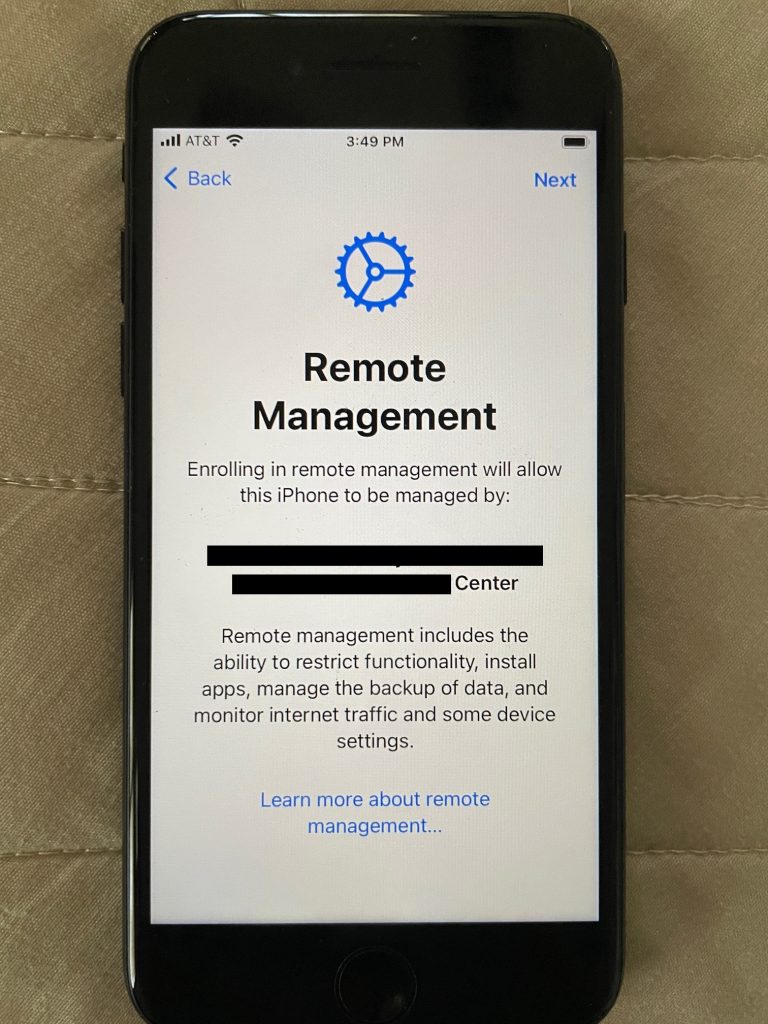
Corporate Apple devices enrolled in Mobile Device Management (MDM) or linked to corporate accounts require additional steps to ensure all organizational data and restrictions are removed before recycling. Failing to do so can leave devices locked, unusable, or at risk of exposing sensitive company data.
Why MDM and Corporate Account Removal Is Critical
- Data Security: Corporate devices often contain proprietary information, such as emails, documents, or client data. Improper disposal without removing MDM profiles or accounts risks data breaches, which affected 2.6 billion personal records globally in 2023.
- Device Usability: MDM profiles can restrict device functionality, preventing recyclers from repurposing or wiping devices. Removing these profiles ensures the device is fully reset and usable.
- Compliance: Organizations must comply with data protection laws like GDPR or HIPAA. Securely wiping corporate devices prevents legal liabilities from data exposure.
- Avoiding Lockouts: Devices with active MDM profiles may remain tied to the organization’s management server, requiring IT admin credentials to unlock, which complicates recycling.

Steps to Remove MDM and Corporate Accounts
- Contact Your IT Administrator: MDM profiles are typically managed by an organization’s IT department. Only an admin with access to the MDM server (e.g., Jamf, Intune, or AirWatch) can remove the device from management.
- Action: Request that your IT admin unenroll the device from the MDM system. This removes remote management and any associated restrictions.
- Apple Business Manager: Remove devices
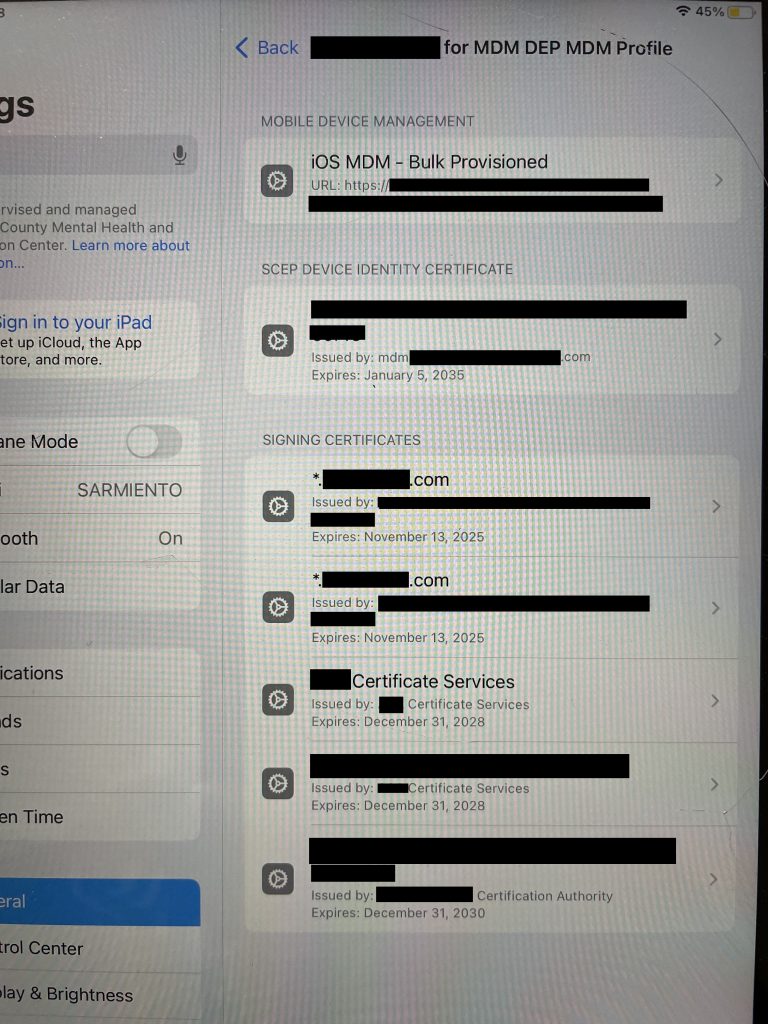
- Verify MDM Removal: After unenrollment, check if the MDM profile is gone. On iPhone/iPad, go to Settings > General > VPN & Device Management. On Mac, go to System Settings > Profiles. If no profiles appear, the device is free of MDM.
- Sign Out of Corporate Accounts: Corporate Apple IDs or email accounts (e.g., Microsoft Exchange, Google Workspace) must be removed.
- For iPhone/iPad: Go to Settings > Mail > Accounts, select the corporate account, and tap Delete Account.
- For Mac: Go to System Settings > Internet Accounts, select the corporate account, and click Remove.
- Remove an account from Mail on iPhone
- Remove an account from Internet Accounts on Mac
- Erase All Content and Settings: After removing MDM and accounts, follow the individual user steps above to erase the device completely.
- iPhone/iPad: Erase iPhone
- Mac: Erase your Mac and reset it to factory settings
- Remove from Apple Business Manager or School Manager: If the device is enrolled in Apple Business Manager or Apple School Manager, the IT admin must remove it from the organization’s account to disable Activation Lock and MDM remnants.
- Verify with Apple Support: If MDM removal fails or the device remains locked, contact Apple Support with proof of purchase or organizational authorization to release the device.
Notes for Corporate Users
- Supervised Devices: Some corporate devices are “supervised,” meaning they have stricter MDM controls. Only the MDM server admin can remove supervision.
- DEP Devices: Devices enrolled in Apple’s Device Enrollment Program (DEP) require removal from Apple Business Manager by the IT admin before recycling.
- Bulk Device Management: For organizations recycling multiple devices, use MDM tools to issue mass unenrollment commands before erasing devices.
- Data Destruction Certification: Some recyclers, like those certified by R2 or e-Stewards, provide certificates of data destruction. Request this from your recycling program to ensure compliance.
Additional Recommendations
- Choose a Reputable Recycler: Global Material Recycling will always work with you to make sure your Apple devices are clear and free of your data before we insert them in the recycling process.
- Document the Process: For corporate users, maintain records of MDM removal and data erasure for audit purposes.
- Educate Employees: Organizations should train employees on proper device preparation to prevent accidental data leaks.
In Conclusion
Before donating Apple devices for recycling, individual users must erase all data and sign out of iCloud to protect personal information and ensure the device is usable by recyclers. Corporate users face additional responsibilities to remove MDM profiles and corporate accounts to safeguard organizational data and comply with regulations. By following Apple’s official guides—linked above for iPhone, iPad, Mac, and Apple Watch—and working with IT administrators for corporate devices, users can ensure a secure and responsible recycling process. Taking these steps not only protects your privacy but also supports a sustainable approach to managing e-waste, contributing to a cleaner and safer environment.